


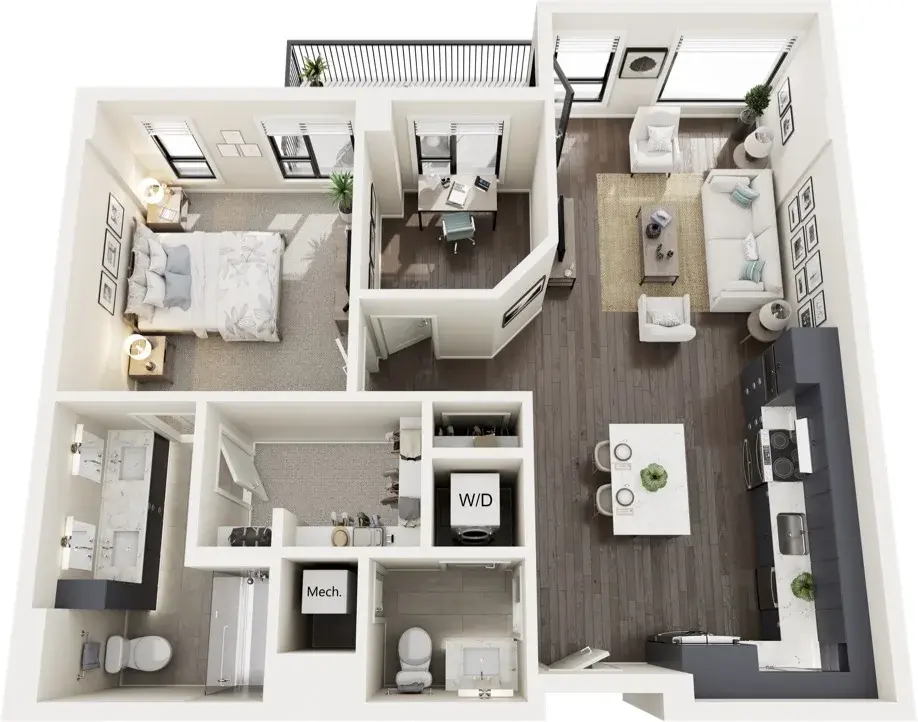
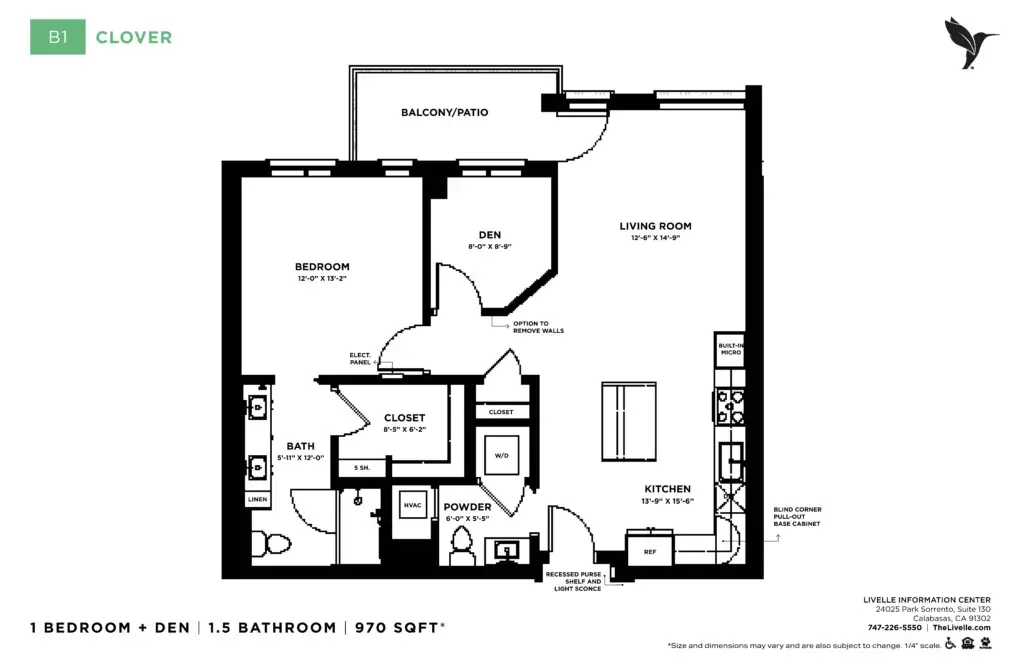
Test-Clover
1 bedroom + den | 1.5 bathrooms
750 sq. ft. | Apartment

Content Editor Guide
All examples use The Delaney at Georgetown Village (Georgetown, TX), the first real community microsite.
Recommended best practice: instead of building a site from scratch, duplicate an existing sample microsite. This copies over the complete structure of pages, navigation headers, footers, and form sections, so you only need to update the branding and content for the new community.
Steps
⚠️ Communities is shared with the main site. The microsite uses the Default Communities provider, so it works with the same Community items as the live main site. Any change you make to the Community item is published on the main site as well. Edit the Community item carefully, and only change what is correct for both sites.
⚠️ The site must stay "in process of development" until go-live. The real domain can be set from the start. It does nothing on its own while the Community's Has microsite checkbox is unchecked: the main site keeps serving the community's detail page. Do not check Has microsite at this stage.
Go to Design → Page Templates and open [Community name] Base Template for editing.
On any page containing a form (such as the Contact Us page):
Go through every page of the new site and replace the sample content (texts, images, galleries, testimonials, floor plans, links) with content for the new community. Publish each page when done.
This can be done during development, so the community editor can help fill in the content. It ensures a community editor only has access to their specific microsite and cannot view or edit other sites in the project.
Open the microsite on its testing domain and check:
Why this is the last step: once this checkbox is checked, the main site no longer resolves the community's default detail page, and all links across the main site and the Community Finder point visitors to the microsite. Checking it before the microsite is ready breaks the live community page.
Rollback: if something is wrong after go-live, uncheck Has microsite on the Community and Publish, then check This site is in process of development on the microsite again. The main site's detail page will serve the community again.
Add a Hero element from the Content section on the page and click Edit.
Choose Hero image ViewName.
THE SPINU AT CEDAR FALLS
Add a Hero element from the Content section on the page and click Edit.
Choose Hero image ViewName.
1. Add Hero widget and select HeroImageLeft template.
2. Fill in Title Black, Title Size, Description, Image (Background Image)
Add a CustomSection element from the Layout section on the page and click Edit.
Choose Card link simple section ViewName.
Add a Card link simple element from the Content section in the Card link simple section, click Edit and populate the Button Link fields.
Add a CustomSection element from the Layout section on the page and click Edit.
Choose Grey Section ViewName.
Add a Card contacts element from the Content section in the Grey Section, click Edit and populate the Title Black, Description and Footnote fields.
Add a CustomSection element from the Layout section on the page and click Edit.
Choose Grey section wider ViewName.
Add a Card logo text element from the Content section in the Grey section wider, click Edit and populate the Image and Description fields.

With multiple floor plan options for every level of care, The SpinU Cedar Falls gives you the opportunity to choose just the right one to suit your needs. Because, when you find the layout you love and make it feel like home, that's when you can truly be you.
Add a Card image left/right element from the Content section , click Edit and populate the needed fields.
Select View Template: In widget properties under Template, choose either: CardImageRight – Image positioned on the right, content/text on the left. CardImageLeft – Image positioned on the left, content/text on the right.
Configure Content Properties:
Eyebrow: Subtitle text above the main headline .
Title Black: Primary headline text in dark font color
Title Size: Heading tag size (H1, H2, H3, H4, H5).
Description
Image
Button Link: Primary interactive bounce button (bounce-container / bounce-button-link with dynamic arrow icon).
Button Link Second: Secondary inline arrow link (inline-arrow).
Accordion Items: Optional collapsible accordion items
Embed String: Optional raw embed HTML/script field.
Layout Settings (Background & Text Alignment):
Background (Chip choice dropdown):
CommunityPrimaryColor (Microsite Only): Applies the community's primary brand background
CommunitySecondaryColor (Microsite Only): Applies the community's secondary brand background
Light: Clean, solid white background
Grey: Soft, neutral light-gray background
Overlay: Injects the responsive background vector overlay
THE SPINU AT CEDAR FALLS
At The SpinU, you live the life you want to live. You'll stay connected to the Richmond and Katy area and be close to the ones you love, while at the same time enjoying all the advantages of residing in a friendly and welcoming senior living community that nourishes your well-being and supports the interests and passions that bring meaning to your life.
This is a place where you can truly be you. Your very best you.
Our LifeSTYLE Promise®—The SpinU commitment to giving you choice, flexibility, and control over everything you do—guarantees it. And our senior Health and Wellness Navigation team will ensure that you have everything you need—both now and when medical challenges may arise—to live your very best life.
Add a CustomSection widget using the CardWhiteBackgroundSection template.
Add card widget and select CardImageFootnote template.
#1 in Customer Satisfaction among Independent Living Senior Living Communities, 7 years in a row.
Visit jdpower.com/awards for more information.
Add a CustomSection widget using the CardsIcoSmSection template, then place the following Card widgets inside:
CardTitleTextOnly in the top for the section title.
CardIcoSmWhite in the middle for the white cards.
CardImageFootnote in the bottom area .
#1 in Customer Satisfaction among Independent Living Senior Living Communities, 6 years in a row.
Visit jdpower.com/awards for more information.
Life Care Services has won more independent living awards than any other brand in the J.D. Power U.S. Senior Living Satisfaction Studies from 2019-2024.
Add a CustomSection widget using the CardsIcoSmSection template, then place the following Card widgets inside:
CardTitleTextOnly in the top for the section title.
CardIcoSmWhite in the middle for the white cards.
CardImageFootnote in the bottom area .
List.MediaGallery.Default - Full slider with built-in primary theme background (main microsite color),
List.MediaGallery.WhiteBackground - Full slider with built-in white background
List.MediaGallery.GreyBackground - Full slider with built-in light gray background
List.MediaGallery.Default.TitleSimple - Image-only slider with default primary theme background
List.MediaGallery.WhiteBackground.TitleSimple – Image-only slider with White background.
List.MediaGallery.GrayBackground.TitleSimple – Image-only slider with Light gray background.
List.MediaGallery.Default.TitleSimple
Assembly Instructions ( for TitleSimple templates )
LCS offers a full suite of business solutions for senior living providers across the nation - management, development, real estate, and group purchasing.
LCS offers a full suite of business solutions for senior living providers across the nation - management, development, real estate, and group purchasing.
LCS offers a full suite of business solutions for senior living providers across the nation - management, development, real estate, and group purchasing.
Take a look below at just a sample of our beautifully designed one- and two-bedroom independent living floor plans. Please contact us to schedule a visit to view any of our other eight floor plan options. You're sure to find one that's perfect for you. And, yes, The Delaney is pet friendly! Every floor plan features:
Take a look below at just a sample of our beautifully designed one- and two-bedroom independent living floor plans. Please contact us to schedule a visit to view any of our other eight floor plan options. You're sure to find one that's perfect for you. And, yes, The Delaney is pet friendly! Every floor plan features:
Take a look below at just a sample of our beautifully designed one- and two-bedroom independent living floor plans. Please contact us to schedule a visit to view any of our other eight floor plan options. You're sure to find one that's perfect for you. And, yes, The Delaney is pet friendly! Every floor plan features:
Add ContentList widget (configured for Articles)
and select template List.Articles.
At The Delaney at Georgetown Village, assisted living is thoughtfully designed to help residents maintain their independence and confidence, while enjoying the reassurance of daily support when it’s needed. Of course, the question on most families' minds when consider assisted living is: How much will assisted living cost?
At The Delaney at Georgetown Village, assisted living is thoughtfully designed to help residents maintain their independence and confidence, while enjoying the reassurance of daily support when it’s needed. Of course, the question on most families' minds when consider assisted living is: How much will assisted living cost?
At The Delaney at Georgetown Village, assisted living is thoughtfully designed to help residents maintain their independence and confidence, while enjoying the reassurance of daily support when it’s needed. Of course, the question on most families' minds when consider assisted living is: How much will assisted living cost?
Add a CustomSection widget and select template Carousel section.
Add Card title button in the Carousel section.
Add Card title button in the Carousel section.
Configure properties:
Title Black: Primary title line.
Button Link - View All.
Add ContentList widget (configured for Articles)
and select template List.Articles.Carousel.
1. Add Card widget and select CardImageLeft template.
2. Fill in Title Black, Title Size, Description, Image, Image Outer, Button Link, Background
1. Add Section Container:
- Add CustomSection widget.
- Select template: CardFormSection.
2. Configure Left Column (Content & Image):
- In the left zone (Widgets section left), add a Card widget.
- Select template: CardVerticalAligned.
- In ContainerWhiteText add a Card widget with template CardTitleTextOnly.
Fill in:
Title Black
Description
Image
3. Configure Right Column (White Form Box):
- In the right zone (Widgets section right), drag and drop a CustomSection widget.
- Select template: ContainerWhiteSectionInner.
Inside the ContainerWhiteSectionInner add the Form widget.
Select the desired form.
At The SpinU, you live the life you want to live. You'll stay connected to the Richmond and Katy area and be close to the ones you love, while at the same time enjoying all the advantages of residing in a friendly and welcoming senior living community that nourishes your well-being and supports the interests and passions that bring meaning to your life.
This is a place where you can truly be you. Your very best you.
Our LifeSTYLE Promise®—The SpinU commitment to giving you choice, flexibility, and control over everything you do—guarantees it. And our senior Health and Wellness Navigation team will ensure that you have everything you need—both now and when medical challenges may arise—to live your very best life.
1. Add Outer Section:
- Add CustomSection widget.
- Select template: SideBySideSection.
2. Add Heading:
- Inside the SideBySideSection section, add CustomSection widget.
- Select template: ContainerWhiteText.
- In ContainerWhiteText add a Card widget with template CardTitleTextOnly.
Fill in:
Title Black: Contact Us
Title Size: H2
3. Add Form Box:
- Below the heading (inside the outer section), add CustomSection widget.
- Select template: ContainerWhiteSection.
4. Add Form:
- Inside the ContainerWhiteSection add the Form widget.
- Select the desired form.
Section-fp.CardHorizontal. Fill in TitleBlack (first line), TitleGradient (second line), Title Size H2, and Description (the intro text).
Picture yourself in a space designed for the way you live. Explore our sample floor plans in 3D, or switch to 2D for a closer look at each layout.
Add a Content list and select Testimonials content type.
Templates:
List.Testimonials.Default - (main microsite color)
List.Testimonials.GreyBackground
List.Testimonials.LightBackground
List.Testimonials.WhiteBackground
